
What vfopro uses an LLM for
vfopro’s AI assistant lets you work on your model in plain language — for example “select all beams on level 2”, “assign a section to the selected elements”, or “how many elements are in the current model?”. Behind the chat window is a large language model (LLM) hosted by an AI provider. It turns your request into steps that vfopro carries out in your model.
The assistant is the only part of vfopro that uses an LLM. Modeling, analysis and results viewing all run on your computer and do not need a key, so you can skip this guide until you want the assistant.
vfopro does not resell AI usage. When you use the assistant, vfopro sends requests from your computer straight to the provider you chose, signed with your API key, and the provider bills you for what you use. A ChatGPT, Claude or Gemini app subscription is a separate product and does not include an API key.
Supported providers
For now, vfopro supports Google, Anthropic and OpenAI. Pick the one you already use or prefer — the assistant works the same way with all three. Create your key by following the provider’s own guide:
| Provider | Shown in vfopro as | How to create the key |
|---|---|---|
| OpenAI | OpenAI (ChatGPT) | OpenAI API quickstart — create an API key in your OpenAI dashboard. |
| Google Gemini | Using Gemini API keys — create the key in Google AI Studio with a Google account. | |
| Anthropic | Anthropic Claude | Get your Claude API key — create the key in the Claude Console under Settings › API keys. |
The small help text under the API Key box in Settings shows older website addresses for some providers. They still redirect, but use the links above for the current guides.
Create your key with the provider
-
Open your provider’s guide from the table above and sign in, or create an account with that provider.
-
Follow the guide to create an API key. Providers differ on billing: many ask for a payment method or prepaid credits before a key works, and free tiers change over time, so follow the current instructions in the provider’s guide.
-
Copy the key straight away. Some providers, such as Anthropic, show the full key only once when you create it. If you lose it, you can’t view it again — just create a new one.
Anyone with your key can run up charges on your account. Don’t share it, email it, or paste it into chats or documents. Consider setting a spending limit or budget alert in your provider’s console — most providers offer one.
Add the key to vfopro
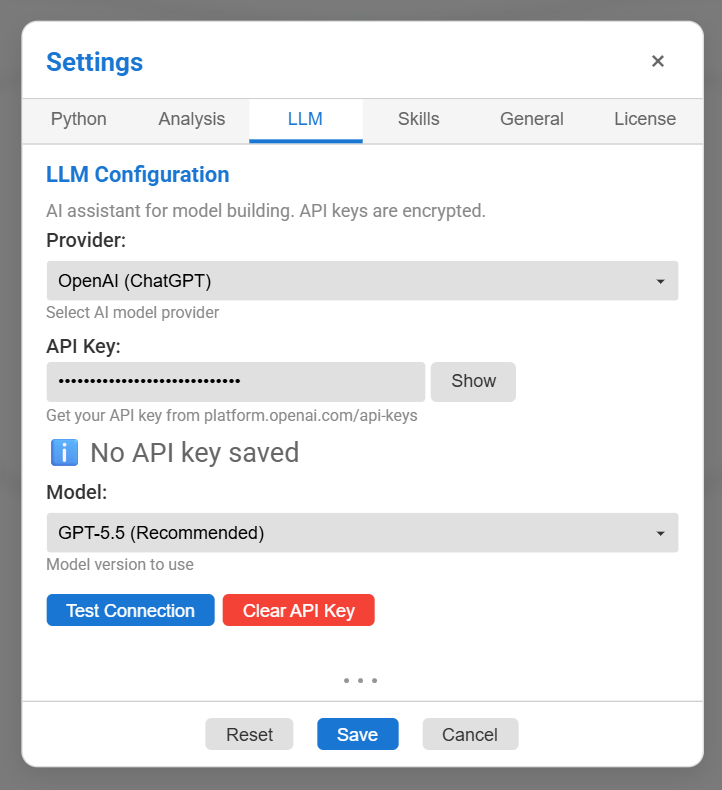
Open Settings with the gear icon in the bottom-right corner of the main window, then click the LLM tab. (On a first run, Set up next to AI Assistant key in the welcome checklist opens the same tab.)
-
Under Provider, choose OpenAI (ChatGPT), Google Gemini or Anthropic Claude.
-
Paste your key into API Key. Click Show if you want to check what you pasted.
-
Choose a Model. Unless you have a reason not to, pick the one marked (Recommended). The list changes with the provider you selected and is updated as vfopro is updated.
-
Click Test Connection. vfopro sends a small test request to the provider using the key.
You should see: “Connection successful!” under the buttons. -
Click Save at the bottom of Settings.
You should see: “API key is saved (encrypted)” the next time you open this tab.
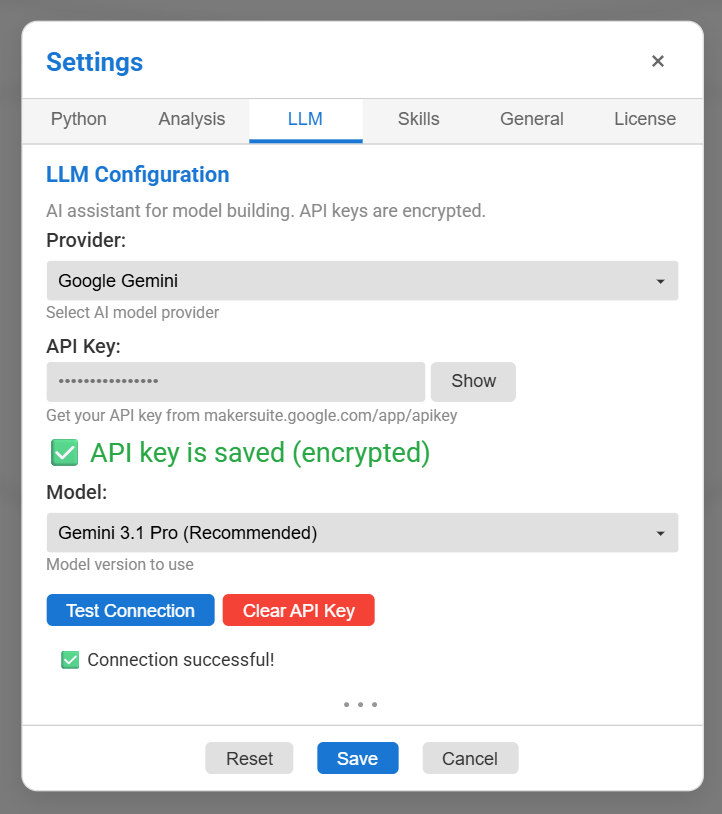
- Test Connection doesn’t save anything. The key is stored only when you click Save.
- If the API Key box has text in it, Test Connection uses that. Leave it empty to test the key you saved earlier.
- vfopro keeps a separate key for each provider, so you can switch providers here without re-entering keys.
Where your key is stored
vfopro stores your key encrypted on your computer, using your operating system’s protection, and only uses it to make requests to the provider you chose. It never saves a key unencrypted — if encryption isn’t available on your system, saving fails with an error instead.
To remove a key, select the provider and click Clear API Key. That deletes vfopro’s copy. To make the key stop working everywhere, also delete or revoke it in your provider’s console.
What the assistant sends to the provider
Each time you send a message, vfopro sends the provider:
- your message and the recent conversation, plus a short running summary of earlier turns;
- a compact description of your model — the names of materials, sections, stories and load patterns, element counts by type, the model’s overall extents, and a few sample nodes and elements;
- what you currently have selected;
- any images, text files or markdown files you attach to the message;
- the output of commands the assistant runs for you (shortened first), so it can decide the next step; and
- vfopro’s own instructions for the assistant, including any skills you activate.
vfopro does not upload your model file or your analysis output files. Values the assistant reads from your model or results while working on a request — a drift value it looks up for you, say — can be part of the output that is sent back. If a project is confidential, read your provider’s data-usage terms first.
Try it
Open the assistant with the AI Assistant (VFO) button — the alien-face icon — in the bottom-right corner, next to the Settings gear.
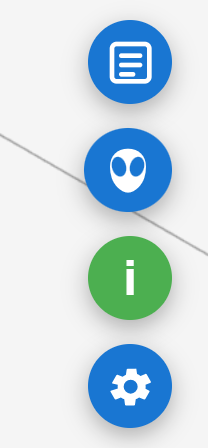
Type a first request, such as “How many elements are in the current model?”, and press Enter.
Learn how the assistant plans and runs commands, and the habits that keep your model safe, in Best Practices for Using the AI Assistant. New to vfopro? Start with Build Your First vfopro Model.
Troubleshooting
“Connection failed: API key not valid”
- Check that you copied the whole key, with no spaces before or after it, and that it belongs to the same provider you selected in vfopro.
- Test Connection uses whatever is in the API Key box before it uses your saved key. If the box holds an old or wrong value, clear it and test again.
- If the key was deleted or revoked at the provider, create a new one.
“Please select a provider first” or “Please enter an API key or save one first”
Choose a Provider first, then paste a key into API Key (or save one) before clicking Test Connection.
The test fails with a quota, billing, or rate-limit message
These messages come from the provider, not from vfopro. Open your account with the provider and check that billing or credits are set up and that you haven’t reached a usage limit. The provider’s guide from the table above explains its current requirements.
“Failed to save API key: Encryption is not available on this system”
vfopro will not store a key unless it can encrypt it with your operating system’s protection, so the key was not saved. Make sure you’re signed in to your normal Windows user account and try again. If it keeps happening, email us and include the message.
The chat window says “AI Assistant not configured”
No key is saved yet for the selected provider. Click the Settings link in that message (or open Settings yourself), go to the LLM tab, and follow Add the key to vfopro.
My Model list doesn’t match the screenshots
Providers release new models often, and vfopro’s list is updated with each release. Choose the model marked (Recommended).
Still stuck? Email us with the message you see and which provider you chose — never send your key itself.
Last updated September 19, 2026 · applies to vfopro 20260918.0.0 or later